TemplateExcel · 3 sheets
Test case template
A ready Excel sheet for writing and running manual test cases, with 8 filled examples for a login page and a summary that counts results for you.
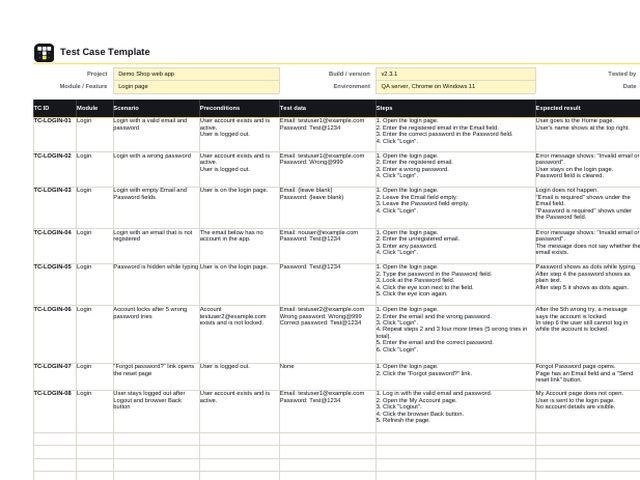
How to start
- Go to the Test cases sheet.
- Fill the light yellow cells at the top: project, module, build, environment, your name and date.
- Read the 8 example rows for a Login page. They show the format. Delete them or write over them.
- Write one test case per row. When you run the test, fill Actual result, Status and Bug ID.
- Open the Summary sheet to see your counts and pass rate. It updates by itself.
Details at the top of the sheet
Fill these light yellow cells first. The values below are the example.
| Project | Demo Shop web app |
|---|---|
| Module / Feature | Login page |
| Build / version | v2.3.1 |
| Environment | QA server, Chrome on Windows 11 |
| Tested by | Your name |
| Date | 21-Oct-2026 |
The 8 example test cases rows 7 to 14 of the Test cases sheet
TC-LOGIN-01PassHigh priority
Login with a valid email and password
- Preconditions
- User account exists and is active.
User is logged out. - Test data
- Email: testuser1@example.com
Password: Test@1234 - Steps
- Open the login page.
- Enter the registered email in the Email field.
- Enter the correct password in the Password field.
- Click “Login”.
- Expected result
- User goes to the Home page.
User’s name shows at the top right. - Actual result
- User went to the Home page.
Name shows at the top right.
TC-LOGIN-02PassHigh priority
Login with a wrong password
- Preconditions
- User account exists and is active.
User is logged out. - Test data
- Email: testuser1@example.com
Password: Wrong@999 - Steps
- Open the login page.
- Enter the registered email.
- Enter a wrong password.
- Click “Login”.
- Expected result
- Error message shows: “Invalid email or password”.
User stays on the login page.
Password field is cleared. - Actual result
- Same error message shown.
User stayed on the login page.
Password field cleared.
TC-LOGIN-03FailMedium priority
Login with empty Email and Password fields
- Preconditions
- User is on the login page.
- Test data
- Email: (leave blank)
Password: (leave blank) - Steps
- Open the login page.
- Leave the Email field empty.
- Leave the Password field empty.
- Click “Login”.
- Expected result
- Login does not happen.
“Email is required” shows under the Email field.
“Password is required” shows under the Password field. - Actual result
- Page reloaded with no error message.
No message shown under either field. - Bug ID
- BUG-101
- Notes
- Screenshot attached in BUG-101.
TC-LOGIN-04PassMedium priority
Login with an email that is not registered
- Preconditions
- The email below has no account in the app.
- Test data
- Email: nouser@example.com
Password: Test@1234 - Steps
- Open the login page.
- Enter the unregistered email.
- Enter any password.
- Click “Login”.
- Expected result
- Error message shows: “Invalid email or password”.
The message does not say whether the email exists. - Actual result
- Same error message shown.
Message does not reveal whether the email exists.
TC-LOGIN-05PassMedium priority
Password is hidden while typing
- Preconditions
- User is on the login page.
- Test data
- Password: Test@1234
- Steps
- Open the login page.
- Type the password in the Password field.
- Look at the Password field.
- Click the eye icon next to the field.
- Click the eye icon again.
- Expected result
- Password shows as dots while typing.
After step 4 the password shows as plain text.
After step 5 it shows as dots again. - Actual result
- Password shown as dots.
Eye icon showed and hid the text correctly.
TC-LOGIN-06BlockedHigh priority
Account locks after 5 wrong password tries
- Preconditions
- Account testuser2@example.com exists and is not locked.
- Test data
- Email: testuser2@example.com
Wrong password: Wrong@999
Correct password: Test@1234 - Steps
- Open the login page.
- Enter the email and the wrong password.
- Click “Login”.
- Repeat steps 2 and 3 four more times (5 wrong tries in total).
- Enter the email and the correct password.
- Click “Login”.
- Expected result
- After the 5th wrong try, a message says the account is locked.
In step 6 the user still cannot log in while the account is locked. - Actual result
- Could not test. Account lock setting is turned off on the QA server in this build.
- Notes
- Asked the dev team to turn on the lock setting. Retest in the next build.
TC-LOGIN-07PassMedium priority
“Forgot password?” link opens the reset page
- Preconditions
- User is logged out.
- Test data
- None
- Steps
- Open the login page.
- Click the “Forgot password?” link.
- Expected result
- Forgot Password page opens.
Page has an Email field and a “Send reset link” button. - Actual result
- Forgot Password page opened with the Email field and the button.
TC-LOGIN-08Not runHigh priority
User stays logged out after Logout and browser Back button
- Preconditions
- User account exists and is active.
- Test data
- Email: testuser1@example.com
Password: Test@1234 - Steps
- Log in with the valid email and password.
- Open the My Account page.
- Click “Logout”.
- Click the browser Back button.
- Refresh the page.
- Expected result
- My Account page does not open.
User is sent to the login page.
No account details are visible. - Notes
- Planned for the next test cycle.
What the colours mean
| Light yellow | Fill these in. You will find them at the top of the Test cases sheet. |
|---|---|
| Dark header | Column names. Please do not rename them, because the Summary depends on them. |
| White rows | Your test cases go here, one per row. Dropdowns are already set for Status and Priority. |
| Summary numbers | These are formulas. Please do not type over them. |
What each column means
| TC ID | A short unique ID for the test case, like TC-LOGIN-01. |
|---|---|
| Module | The part of the app you are testing, like Login, Cart or Payment. |
| Scenario | One line that says what you are checking. |
| Preconditions | What must already be true before you start, like “User is logged out”. |
| Test data | The exact values you will type or use. Write the real values, not “valid email”. |
| Steps | Numbered actions, one per line. For a new line inside a cell press Alt+Enter (Mac: Control+Option+Return). |
| Expected result | What should happen if the app works as per the requirement. |
| Actual result | What really happened when you ran the test. |
| Status | The result of the run. Pick it from the dropdown (see below). |
| Priority | How important the case is. Pick High, Medium or Low. |
| Bug ID | The bug number from your bug tracker (for example Jira) if the test failed. |
| Notes | Anything else useful: screenshot name, browser, reason for a skip, retest date. |
Status values and when to use each
| Not run | You have not run this case yet. Use it as the starting value. |
|---|---|
| Pass | The actual result matches the expected result. |
| Fail | The actual result is different from the expected result. Log a bug and write its ID in Bug ID. |
| Blocked | You could not run the test because of something outside it, like the server being down or another bug stopping you. Write the reason in Notes. |
| Skipped | You decided not to run it this time, for example it is out of scope for this build. Write the reason in Notes. |
Tip: write steps another person can follow
- Write as if a new team member will run your test tomorrow without asking you anything.
- Keep one action per step. Start each step with a verb: Open, Enter, Click, Select.
- Name the exact button, field or link. Write Click “Login”, not “submit the form”.
- Put real values in Test data, so anyone can repeat the test the same way.
- Test one thing per test case. If you are checking two things, split them into two rows.
- Make the expected result something you can see and check. “Works fine” is not an expected result.
Need more rows?
The table has space for 48 test cases. To add more, right-click a row number inside the table (not below it) and choose Insert. New rows inside the table keep the dropdowns, and the Summary counts them too.
The Summary sheet updates by itself
For the 8 examples, the Summary sheet shows:
5Pass
1Fail
1Blocked
1Not run
8Total
71%Pass rate
- Counts come from the Status column (rows 7 to 54) on the Test cases sheet.
- Executed counts every case except Not run, so Blocked and Skipped cases are included.
- Pass rate = Pass divided by Executed. It shows 0.0% until you have run at least one case.