Playwright MCP is a free, open-source server from Microsoft’s Playwright team that lets an AI assistant, such as GitHub Copilot in VS Code, Claude Code or Cursor, control a real browser. You add one npx @playwright/mcp@latest entry to your AI client’s settings, and the AI can then open pages, click, type and read results. In this Playwright MCP tutorial we install it, set it up for testing work, look at what the AI actually sees on a page, and go through real uses with example prompts. You need Node.js 20 or newer and one MCP client.
Last checked on: @playwright/mcp v0.0.83 (latest release) and the Playwright 1.64 documentation, October 2026. All commands come from the official docs linked below.
In short
- Playwright MCP is a bridge. Your AI client sends tool calls such as
browser_navigateandbrowser_click, and the server runs them in Chrome, Firefox, WebKit or Edge. - Installing it means adding
npx @playwright/mcp@latestto your client’s MCP config. There is no global npm install, and the browser downloads on first use. - The AI reads the page as an accessibility snapshot, a text tree where every element gets a ref like
e5. Good labels in your app make it work better. - Testers use it to explore a flow, reproduce a bug, read console and network errors, check dialogs and uploads, and draft tests. Keep your real regression suite in normal Playwright test files.
What this guide covers
What is Playwright MCP, in plain words?
Ask a chatbot to check whether a login page works, and on its own it can only talk about it. It has no browser and no way to press a button.
The Model Context Protocol (MCP) fixes that. It is an open standard that gives AI apps one common way to plug into outside tools and data, and the official MCP site compares it to a USB-C port for AI applications. A tool that speaks MCP is called a server. The app you chat in, like VS Code or Claude Code, is the client.
Playwright MCP is the server for browsers. The Playwright MCP repository describes it as browser automation through Playwright’s accessibility snapshots, with no vision model needed. In practice the AI can navigate, click, type, fill forms, handle dialogs, switch tabs, take screenshots and read console and network logs.
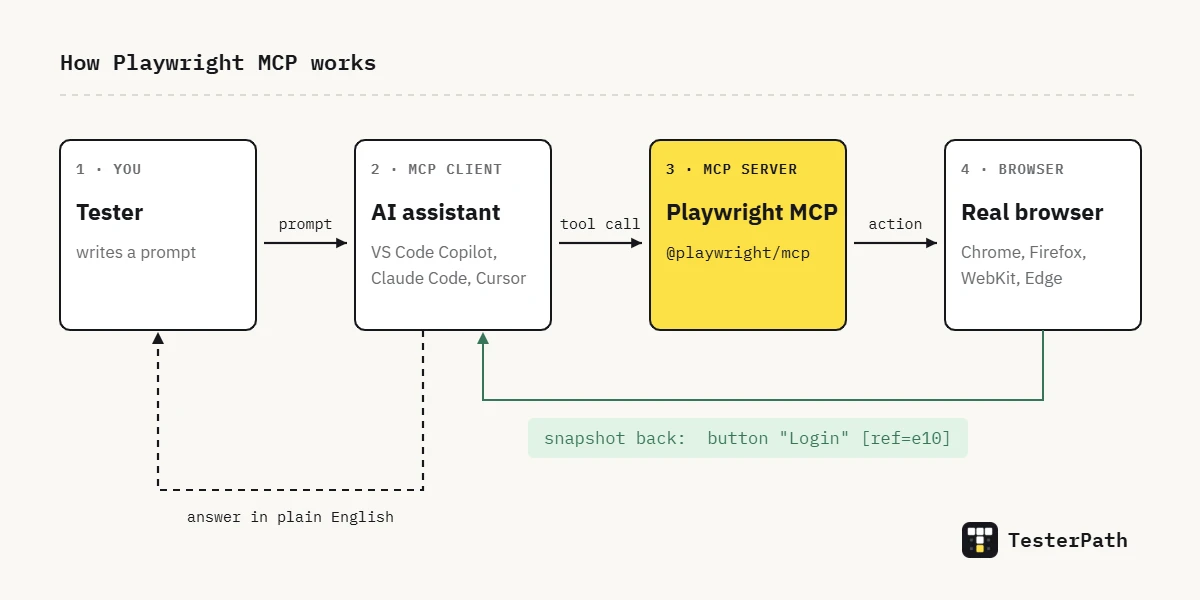
So there are always three pieces. You write the prompt. The client (Copilot, Claude Code, Cursor and so on) decides which tool to call. The Playwright MCP server does the actual browser work and reports back.
How the AI “sees” the page: snapshots and refs
Most tutorials skip this part, yet it explains most of the good and bad results you will get. After each action, the server sends the AI an accessibility snapshot: a nested list of elements with their role (button, textbox, link), their accessible name, and a short ref such as e5. To type into a field, the AI passes that ref back. The Playwright snapshot docs also note that a ref goes stale when the page changes, and the tool then asks for a fresh snapshot.
Think about what that means for an Indian OTP screen built as six input boxes with no labels. The snapshot shows six textboxes with no names, and the AI has to guess the order. A UPI amount field with a proper label shows up as a named textbox, and the AI gets it right the first time. So the snapshot doubles as a cheap accessibility smell test. If the AI keeps clicking the wrong thing, check the labels before you blame the AI.
Screenshots still exist (browser_take_screenshot), but the README is clear that you cannot perform actions based on a screenshot. Clicks and typing go through the snapshot.
Which Playwright MCP package should you install?
Search results mix tutorials for two different servers and a newer CLI, and their configs are not interchangeable.
| Package | Made by | What it is |
|---|---|---|
@playwright/mcp | Microsoft (Playwright team) | The official Playwright MCP server, documented on playwright.dev. This guide covers this one. |
@executeautomation/playwright-mcp-server | ExecuteAutomation (community) | A separate MCP server built on Playwright, with its own docs and a global npm install. |
@playwright/cli | Microsoft (Playwright team) | Playwright CLI, a command-line tool with skills for coding agents. Not an MCP server. |
Our advice for a fresher: start with the official server, because the Playwright docs and release notes describe it, so when something breaks you are reading the right page. The community server is not wrong. A config copied from its tutorial just won’t behave like the official one.
What you need before you install
- Node.js 20 or newer. The installation page says 20. The GitHub README still says 18 at the time of writing, so go with the stricter number.
- One MCP client. VS Code with GitHub Copilot, Claude Code, Cursor, Claude Desktop, Codex and Windsurf all work with the same basic config.
- Internet access to npm on the first run. npx fetches the package and the browser downloads on first use. On an office laptop behind a strict proxy, this is where the first failure usually happens, before any AI is involved.
You do not need an existing Playwright project, and you do not need to install anything globally.
How to install Playwright MCP, step by step
Step 1: Check Node.js and run the server once by hand
Open a terminal and check your Node.js version first.
node -vAnything from v20 upward is fine. Now ask npx to fetch Playwright MCP and print its options. You are not starting a long-running server here; you are only proving that your machine can download and run the package.
npx @playwright/mcp@latest --helpYou should see a usage line followed by a long list of options such as --browser, --headless and --isolated. If this command fails, fix npm or your proxy first. No AI client will succeed where this command fails.
Step 2: Add the server to your MCP client
Every client accepts the same standard config from the Playwright MCP installation page. Your client starts the server itself when it needs it.
{
  "mcpServers": {
    "playwright": {
      "command": "npx",
      "args": ["@playwright/mcp@latest"]
    }
  }
}
Where that config goes depends on the client. This table puts the official commands side by side.
| Client | How to add Playwright MCP | How to check it worked |
|---|---|---|
| VS Code (GitHub Copilot) | Click Install in VS Code on the docs page, or run code --add-mcp '{"name":"playwright","command":"npx","args":["@playwright/mcp@latest"]}' | Command Palette, MCP: List Servers, pick playwright. In chat, the Configure Tools button lists its tools. |
| Claude Code | claude mcp add playwright -- npx @playwright/mcp@latest | claude mcp list in the terminal, or /mcp inside Claude Code |
| Cursor | Cursor Settings, MCP, Add new MCP Server. Type: command. Command: npx @playwright/mcp@latest | The server shows in the MCP list with its tools |
| Codex | codex mcp add playwright npx "@playwright/mcp@latest" | Ask Codex to open a page |
| Claude Desktop | Paste the standard config into its MCP config file, following the MCP install guide | Restart the app, then check its tools list |
Two details that trip people up. In VS Code, the VS Code MCP docs now recommend a portable .mcp.json file in the project root, which uses the mcpServers key shown above. The older .vscode/mcp.json file uses a servers key instead, and is marked deprecated for new servers. Put the wrong shape in the wrong file and the server never appears. If code --add-mcp complains about JSON in PowerShell, use the Install button or search @mcp in the Extensions view instead.
In Claude Code, the -- in the command matters. The Claude Code MCP docs explain that everything after -- goes to the server untouched. Without it, a flag like --headless would be read as a Claude Code option. Add --scope project if you want the setting saved in .mcp.json so your team gets the same server.
Step 3: Give it a first job on a practice site
Use a public practice page, never a real app with real money behind it. The login page on the-internet.herokuapp.com is a good first target because it prints its own demo username and password. Try a prompt that reads like a tester’s instruction, not a chat message:
Open https://the-internet.herokuapp.com/login.
Log in with the demo username and password shown on that page,
then tell me the exact text of the message you see.
After that, log out, try a wrong password once, and report that message too.
Many clients ask you to approve each tool call the first time. Read those requests, because they tell you what the AI is doing: browser_navigate to open the page, browser_type or browser_fill_form for the fields, browser_click for the button. By default the browser opens in headed mode, so you can watch it happen.
The snapshot the AI gets for a page like this is short. The example below is illustrative only, written in the documented format to show the idea. Your real refs and lines will differ.
- heading "Login Page" [level=2] [ref=e4]
- textbox "Username" [ref=e7]
- textbox "Password" [ref=e9]
- button "Login" [ref=e10]
Step 4: Turn the session into a real test
Here is the habit that separates a useful session from a fun demo. Once the AI has done the flow, ask it to write a Playwright test for what it just did, then read every line before you save it. A chat session is not repeatable. A test file is.
A reviewed version for the same practice page could look like this. It uses the demo values the page itself publishes.
// tests/login.spec.ts
import { test, expect } from '@playwright/test';

test.describe('practice login page', () => {
  test.beforeEach(async ({ page }) => {
    await page.goto('https://the-internet.herokuapp.com/login');
  });

  test('valid demo user reaches the secure area', async ({ page }) => {
    await page.getByLabel('Username').fill('tomsmith');
    await page.getByLabel('Password').fill('SuperSecretPassword!');
    await page.getByRole('button', { name: 'Login' }).click();
    await expect(page).toHaveURL(/\/secure$/);
    await expect(page.getByText('You logged into a secure area!')).toBeVisible();
  });

  test('wrong password keeps the user on the login page', async ({ page }) => {
    await page.getByLabel('Username').fill('tomsmith');
    await page.getByLabel('Password').fill('not-the-password');
    await page.getByRole('button', { name: 'Login' }).click();
    await expect(page).toHaveURL(/\/login$/);
    await expect(page.getByText('Your password is invalid!')).toBeVisible();
  });
});
The locators use labels and roles (getByLabel, getByRole), the same information the snapshot showed. Each test checks where the user lands and the message they see. The second one is the negative case, which in our view AI-written tests tend to skip unless you ask for it.
We have not run this exact file ourselves, so treat it as a starting point: run it with npx playwright test inside a Playwright project and adjust it if your version behaves differently.
What can testers use Playwright MCP for?
Login is a good first job, but it is the least interesting one. The real value shows up on tasks that are slow to do by hand and too short-lived to automate properly. Each prompt below runs on a public practice page on the-internet.herokuapp.com, so you can try it without touching a real product. Put https://the-internet.herokuapp.com in front of each path when you type the prompt.
| Use | Example prompt | Tools the AI will likely call |
|---|---|---|
| Exploring a slow-loading page | “Open /dynamic_loading/1, click Start, wait for the result and tell me the text that appears.” | browser_click, browser_wait_for |
| Hunting JavaScript errors | “Open /javascript_error and list every console error with its message.” | browser_console_messages |
| Checking failed requests | “Open /broken_images and tell me which image requests failed and with what status.” | browser_network_requests |
| Alerts and confirm boxes | “On /javascript_alerts, click the JS Confirm button, dismiss it, and report the result text.” | browser_handle_dialog |
| File upload | “On /upload, upload sample.txt from my project folder and confirm the file name shown after upload.” | browser_file_upload |
| Reading data off a page | “On /tables, which person in Example 1 has the highest Due amount?” | browser_snapshot |
| A quick mobile look | Start the server with –device=”iPhone 15″, then ask it to open the page and describe the layout | browser_take_screenshot |
A few patterns are worth calling out, because they are where we would use it on a real project.
Reproducing a bug from a ticket. Paste the steps from the Jira ticket as the prompt and ask the AI to stop and report the console and network errors at the step that fails. For a train-booking form that throws a blank screen after the passenger details page, that report gives the developer a real head start. Ask for a screenshot at the failure point and attach it to the ticket.
Testing how the UI handles a broken API. With --caps=network, the server adds route tools such as browser_route, so you can ask the AI to make the order API on your team’s staging food-delivery app return a 500 and describe what the cart page shows. Doing the same by hand usually means waiting for a developer to break the backend for you.
Checking and not just clicking. With --caps=testing, the AI gets assertion tools like browser_verify_text_visible, so a prompt such as “verify the error text appears” is checked by a tool rather than taken from the AI’s own reading.
Where it is not a good fit
Some jobs are a poor match. An SMS OTP lands on your phone, not in the browser, so an OTP login stops dead unless your test environment has a fixed OTP or a bypass. CAPTCHAs are built to stop exactly this kind of automation. Load testing needs thousands of virtual users, which is a job for a tool like k6, as in our load testing tutorial, not a browser driven one step at a time. Pixel-level visual comparison also belongs in Playwright’s own screenshot assertions inside a test file.
How to set up Playwright MCP for testing work
Installing gives you the defaults: a visible browser window and a profile that remembers logins. For testing you usually want more control. You pass options by adding them to the args list. The README options table lists dozens; these are the ones worth knowing first.
| Option | What it does | When we would use it |
|---|---|---|
--headless | Runs without a visible window (headed is the default) | Once you trust the flow and just want results |
--browser=firefox | Picks chrome, firefox, webkit or msedge | Checking a bug that only shows in one browser |
--isolated | Keeps the profile in memory, nothing saved to disk | Test sessions that must start clean every time |
--storage-state=auth.json | Loads cookies and local storage into an isolated session | Starting already logged in with a test account |
--device="iPhone 15" | Emulates a device | A quick look at a mobile checkout or cart |
--caps=testing | Adds assertion tools such as browser_verify_text_visible and browser_generate_locator | When you want the AI to check, not only click |
--proxy-server=http://myproxy:3128 | Sends the browser’s traffic through a proxy | Office networks that need one |
--port 8931 | Runs a standalone server over HTTP | Headed browser on a machine where the IDE worker has no display |
A config that starts every session clean, in Firefox, without a window, looks like this:
{
  "mcpServers": {
    "playwright": {
      "command": "npx",
      "args": [
        "@playwright/mcp@latest",
        "--isolated",
        "--headless",
        "--browser=firefox"
      ]
    }
  }
}
One warning about the default. The persistent profile keeps logins and cookies per project, as the profile docs explain. Handy with a test account, risky if you ever log in to something real in that window. Never let an AI agent drive your own net banking or UPI session; use test accounts and --isolated.
Playwright MCP vs Playwright CLI vs normal Playwright tests
The Playwright team now ships two AI-facing tools. Its README suggests the Playwright CLI with skills for coding agents, since CLI calls skip large tool schemas and long accessibility trees and so use fewer tokens. MCP is kept for agent loops that need persistent browser state and deep page inspection, like exploratory automation or self-healing tests.
| Need | Playwright MCP | Playwright CLI | Playwright test files |
|---|---|---|---|
| Explore a new flow by describing it | Good fit | Good fit, inside a coding agent | Slow to start |
| Reproduce a bug from a ticket | Good fit | Good fit | Write after you reproduce it |
| Work in a chat app with no terminal (Claude Desktop) | Yes | No, it needs a shell | No |
| Run the same regression every night in CI | Not the right tool | Not the right tool | Yes |
| Same result on every run | No, AI decisions vary | No, AI decisions vary | Yes |
Our view: MCP is a very good pair of hands for exploration and bug reproduction, and a decent first-draft writer for tests. It is not a test suite. The same prompt can take a different path on a second run, every snapshot costs tokens, and an AI can report success when the page says otherwise. Snapshots also carry structure, not layout, so overlapping buttons or a broken CSS grid will not show up unless you ask for a screenshot and look at it yourself.
Common mistakes beginners make
Following two different servers’ tutorials at once. Install commands, config keys and tool names differ between @playwright/mcp and the community server. Pick one and stick to its docs.
Running an old Node.js. If npx throws syntax errors or refuses to start, check node -v before anything else. The docs ask for 20 or newer.
Treating the chat as the test. A passing chat session proves nothing next week. Save the flow as a test file and run it with npx playwright test.
Skipping the -- in Claude Code. Adding --headless without the separator makes Claude Code try to read the flag itself.
Asking for a screenshot and expecting clicks from it. Actions come from the snapshot. If you need visual checks, ask for a screenshot and judge it yourself, or look at --caps=vision for coordinate-based tools.
Giving the agent more power than the task needs. The README states plainly that Playwright MCP is not a security boundary, and the docs describe browser_run_code_unsafe as running arbitrary code in the server process. Use it only with clients you trust, and keep secrets out of prompts.
What the official docs say
The Playwright MCP getting started guide gives the Node.js 20 requirement, the standard config and a first prompt on the TodoMVC demo. The snapshot page adds that a target can also be a normal Playwright locator when you already know the element. The GitHub README holds the full options table, the three profile modes and the opt-in capability groups (network, storage, devtools, vision, pdf, testing, config).
Keep the release notes open when a tool behaves differently from a tutorial. The server changes almost every release; v0.0.82, for example, replaced the WebMCP list and call tools with tools named after the page’s own. For client setup, the VS Code MCP guide and the Claude Code MCP guide are the pages to trust.
Playwright MCP interview questions
Questions about AI tools are worth preparing for automation interviews, including roles at around 3 years of experience. Here are four likely ones, with short answers to put in your own words.
1. What problem does Playwright MCP solve?
It gives an AI assistant a standard way to control a real browser. Without it, the model can only describe steps. With it, the model calls tools like navigate, click and type, and reads back what happened.
2. How does the AI find elements without screenshots?
It reads an accessibility snapshot. Each element has a role, an accessible name and a ref, and the AI passes the ref to the next tool call.
3. Would you replace your Playwright suite with MCP prompts?
No. AI runs are not deterministic and cost tokens per step. We use MCP to explore and draft, then keep reviewed test files in CI.
4. What is the difference between persistent and isolated mode?
Persistent keeps cookies and logins between sessions for each project. Isolated keeps everything in memory, so each session starts clean, and you can preload state with a storage state file.
FAQ
What is Playwright MCP?
Playwright MCP is an open-source Model Context Protocol server from Microsoft’s Playwright team. It lets AI clients such as GitHub Copilot in VS Code, Claude Code or Cursor control a real browser. The AI reads an accessibility snapshot of the page and calls tools to navigate, click, type and fill forms.
Is Playwright MCP free?
Yes. The server is open source under the Apache 2.0 licence, and you run it locally with npx at no cost. The AI client you connect it to is a separate product, so check that client’s own plan and usage limits before you start a long session.
How do I install Playwright MCP in VS Code?
Make sure Node.js 20 or newer is installed. Then use the Install in VS Code button on the Playwright MCP docs, search @mcp in the Extensions view, or run code –add-mcp with the standard npx config. Check it with the MCP: List Servers command.
Do I need to know coding to use Playwright MCP?
Not to start. You can drive a browser with plain English prompts, which suits manual testers trying it out. To get lasting value, though, you should read and fix the Playwright tests it writes, so basic JavaScript or TypeScript and Playwright locators will help a lot.
What can testers use Playwright MCP for?
Testers use it to explore new flows, reproduce bugs from ticket steps, read console errors and failed network requests, handle alerts and file uploads, emulate a mobile device, and draft Playwright tests. With opt-in capabilities it can also mock API responses and run assertion tools for checks.
What is the difference between Playwright MCP and Playwright CLI?
Both come from the Playwright team. Playwright MCP is an MCP server that sends snapshots into the AI’s context. Playwright CLI is a command-line tool with skills for coding agents, which the Playwright README calls more token-efficient. MCP still suits chat clients and long agent sessions.
What to practise next
Install Playwright MCP in the client you already use, run the practice login prompt, then ask the AI for a test and fix whatever it gets wrong. That review step is where you actually learn. After that, repeat the session with –isolated and –browser=firefox and compare what changes.
If you are new to Playwright itself, our Playwright vs Postman comparison for API testing shows how Playwright tests are structured. To see where automation fits in your learning, follow the QA learning roadmap, and if AI tools make you worried about manual testing, read our honest take on a manual testing career in 2026. More guides like this live in the Test Automation section.
Sources
- Microsoft / Playwright – Playwright MCP: Getting started (docs, 2026)
- Microsoft / Playwright – Playwright MCP Installation (docs, 2026)
- Microsoft / Playwright – Playwright MCP Snapshots (docs, 2026)
- Microsoft / Playwright – Playwright MCP Profile and State (docs, 2026)
- microsoft/playwright-mcp on GitHub – Playwright MCP README (v0.0.83, 2026)
- microsoft/playwright-mcp on GitHub – Releases (v0.0.83, 2026)
- microsoft/playwright-cli on GitHub – Playwright CLI with SKILLS (2026)
- Microsoft / Playwright – Release notes (Playwright 1.64, 2026)
- Model Context Protocol – What is the Model Context Protocol (MCP)? (2026)
- Visual Studio Code – Add and manage MCP servers in VS Code (updated October 2026)
- Anthropic – Connect Claude Code to tools via MCP (2026)
- ExecuteAutomation – Playwright MCP Server documentation (2025)
Tools and features change often. Check the official documentation for the version you are using.