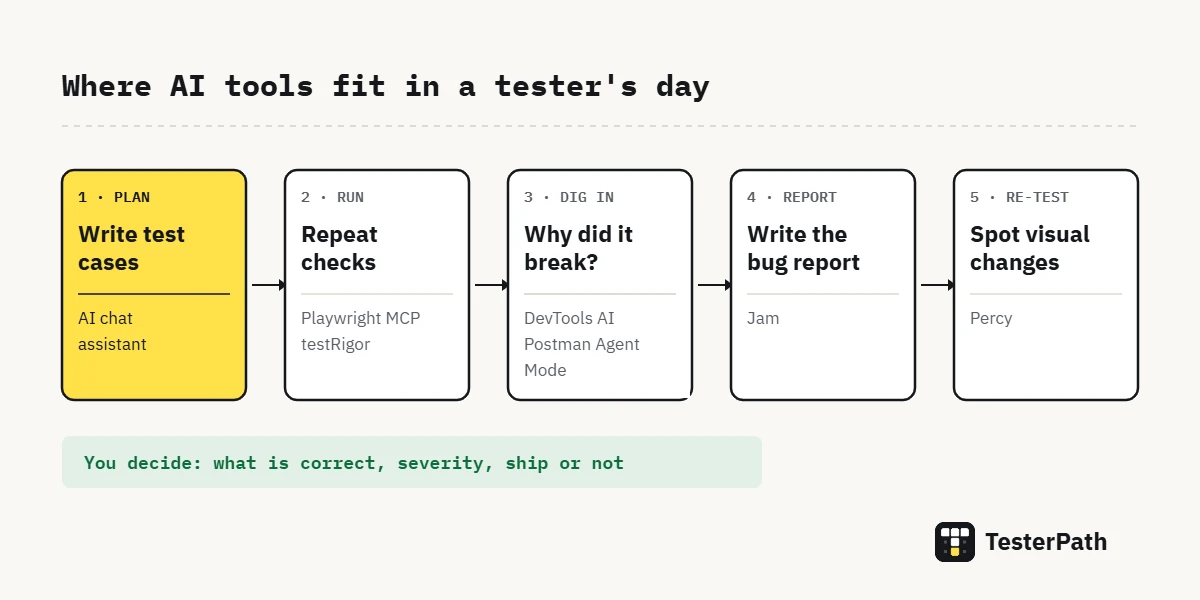
AI testing tools for manual testers are worth it when they take over the slow parts of the day: drafting test ideas, writing bug reports, explaining a console error, checking an API and repeating the same browser steps. Seven tools do this well right now: an AI chat assistant, Jam, Chrome DevTools AI assistance, Postman Agent Mode, Playwright MCP, testRigor and Percy. Below we match each one to a real task, say what it costs to start, and review AI-drafted test cases for an OTP login. Most of them need only a browser and no code.
Last checked on: the official docs and pricing pages of each tool, and @playwright/mcp v0.0.83, October 2026. Free limits change often, so confirm them on the tool’s own site before you sign up.
In short
- AI is good at the writing and digging parts of manual testing. It does not know what “correct” means for your product. You do.
- You can start free: an AI chat assistant, Chrome DevTools AI assistance and Playwright MCP cost nothing to try, and Jam, Postman and Percy have free plans with limits.
- Review every AI draft against the requirement. Drafts miss business rules and sometimes describe features your app does not have.
- Never paste real customer data, passwords, tokens or internal URLs into an AI tool your company has not approved.
What this guide covers
Can AI replace a manual tester?
No, and none of the tools below try to. Ask any AI chat assistant for test ideas on a UPI payment screen and you will get twenty sensible checks in a few seconds. What you will not get is your product owner’s rule that refunds above ₹5,000 need a second approval, because that rule lives in a Jira story and in people’s heads, not in the model.
That gap is the job. A manual tester decides what matters to the user, notices when something feels wrong even though no test failed, and questions a requirement that does not add up. AI makes the typing and searching faster. The judgement stays with you.
The risks are real too. The ISTQB syllabus for Testing with Generative AI (CT-GenAI) lists hallucinations, reasoning errors, bias and data privacy as risks testers must manage when they use these tools.
The 7 AI testing tools for manual testers at a glance
Pick the row that matches the slowest part of your day.
| Tool | Helps you with | Free to start? | Code needed? |
|---|---|---|---|
| AI chat assistant (ChatGPT, Gemini, Claude, Copilot) | Test ideas, test cases, test data, cleaner bug reports | Yes, each has a free tier | No |
| Jam | Bug reports with an AI-written title and repro steps | Free plan with 30 trial uses of Jam AI | No |
| Chrome DevTools AI assistance | Explaining console errors, failed requests and layout bugs | Free, with conditions (see below) | No |
| Postman Agent Mode | Writing and fixing API tests, debugging requests | Monthly AI credits on every plan | No, it writes the test script for you |
| Playwright MCP | Letting an AI open a browser and repeat your steps | Free and open source; the AI client is billed separately | One setup command |
| testRigor | Automated tests written in plain English | 14-day free trial, then paid | No |
| Percy (BrowserStack) | Catching visual changes between builds | Free plan with 5,000 screenshots a month | Some setup, usually by a developer |
1. An AI chat assistant for test ideas and test cases
A new story lands on Monday morning and the test case sheet is empty. This is where a chat assistant pays for itself. ChatGPT, Gemini, Claude and Microsoft Copilot all have free tiers, and for drafting test ideas any of them will do. Your prompt matters far more than the brand.
Give it the feature, the rules, the platform and the type of user. Ask for the output as a table with positive, negative and boundary cases. Then ask a second question that most people skip: “What would you ask the product owner before testing this?” Those questions are often more useful than the test cases, because they show where the requirement is vague.
The weak spot is confidence. The assistant will write an expected result for a rule you never gave it, and sound sure about it. Treat every draft like a junior teammate’s first attempt. Once reviewed, move the cases into our free test case template in Excel.
2. Jam for quicker bug reports
Writing the report often takes longer than finding the bug. Jam is a browser extension that records the bug as a video, a screenshot or an “instant replay” of what just happened. Its AI feature, according to Jam’s own docs, writes a short title and a list of steps to reproduce from the recording. The steps work for video and replay captures, not for plain screenshots.
The free plan gives you 30 trial uses of Jam AI, enough to see if it fits your team. The catch: the AI describes what happened on screen, not what should have happened. Expected result, severity and build number are still yours to write. Our bug report template with a filled example lists every field.
3. Chrome DevTools AI assistance for “why did this break?”
You click Pay, nothing happens, and the console shows a red error you cannot read. Real bug or noise? Chrome DevTools now has Gemini built in for exactly this moment.
Two features matter for testers. Console insights explains an error when you hover over it and click the lightbulb button labelled “Understand this error”. The AI assistance panel lets you select an element, a network request or a file and ask about it in plain words, for example “why did this request return 401?” or “why is this button hidden on mobile width?”
There are conditions. Google’s setup guide asks for the latest Chrome, a signed-in Google account, age 18 or more, a supported location and DevTools set to English (US). If the option is missing under Settings, it is not available for your account or region yet. For Console insights, the message, stack trace, related source code and network headers go to Google, may be read by human reviewers and can be kept for up to 18 months. Use it on test environments, not on pages with real customer data.
If you are still learning which DevTools panel shows what, keep our Chrome DevTools cheat sheet for testers open next to it.
4. Postman Agent Mode for API checks
Many manual testers use Postman to send a request and read the response, then stop at the Tests tab because it is JavaScript. Agent Mode is Postman’s built-in AI assistant, and Postman’s docs say it can write and update tests, debug errors and create requests from plain-English instructions. Postman also says every user gets a monthly allowance of AI credits, whatever their plan.
A prompt that works well is specific about what “pass” means:
For the request GET https://jsonplaceholder.typicode.com/posts/1,
add tests that check:
- the status code is 200
- the response time is under 1000 ms
- userId is a number
- title is a non-empty string
Read the generated test before you save it. A test that only checks for status 200 will pass even when the body comes back empty or with the wrong user. If you want to see how the same checks look in code, our Playwright vs Postman comparison for API testing writes four checks in both tools side by side.
You may also see the name Postbot. That is Postman’s earlier AI assistant, still described in the v11 docs. In current versions, look for Agent Mode.
5. Playwright MCP to repeat browser checks in plain English
Playwright MCP is a free, open-source server from Microsoft’s Playwright team. You connect it to an AI client such as GitHub Copilot in VS Code, Claude Code or Cursor, and the AI can then open a real browser, click, type and read the page. According to the official README, it works from the page’s accessibility tree rather than from screenshots, so it does not need a vision model.
For a manual tester it helps in three places: repeating a long smoke check after every build, re-walking a bug’s steps to confirm it still happens, and filling a twelve-field train-booking form for the tenth time. Setup is one command. This is the README’s command for Claude Code (Node.js 18 or newer):
claude mcp add playwright npx @playwright/mcp@latestIt has limits. The AI client usually costs money, a run is slower than a test script, and the AI may take a different path next time. Use it for exploring and repeating, not as your regression suite. Our Playwright MCP tutorial covers the full setup and real example prompts.
6. testRigor for automation in plain English
Some manual testers want automation without learning a programming language first. testRigor lets you write steps in plain English, and its AI turns them into actions on the page. The format below follows the examples in testRigor’s own how-to articles. We have not run this exact test, because testRigor needs an account:
enter "NDLS" into "From"
enter "BCT" into "To"
click "Search trains"
check that page contains "Available trains"
check that button "Book now" is disabled
The trade-off is cost and lock-in: a 14-day free trial, then paid, and your tests live inside its platform. If your company already pays for it, it is a gentle step into automation. If you are learning alone, our view is that a free tool like Playwright teaches skills you can carry to any job.
7. Percy for visual changes you would miss by eye
A Save button moves four pixels down. A font drops from 16 px to 15 px on one page. Nobody files a bug, and three releases later the screen looks off and no one knows when it started. Visual testing tools catch this by comparing screenshots between builds.
Percy, from BrowserStack, has a free plan with 5,000 screenshots a month, unlimited users and unlimited projects. Its product page lists AI features such as a Visual Review Agent that summarises changes in plain English, and filters for moving content like carousels and ads. Setup goes through an SDK or CI pipeline, so a developer usually wires it up. Your part is the review: deciding whether each highlighted change is a bug or an intended design update. Applitools Eyes does similar work, but its pricing page lists paid plans and a free trial rather than a free plan.
Hands-on: reviewing AI-drafted test cases for an OTP login
Here is the routine we suggest for any AI-drafted test cases. The feature is a mobile-number login with a one-time password, the kind every food-delivery or banking app has. The rules are an example; swap in your own.
Step 1: Give the assistant real context
You are helping a manual tester.
Feature: login with a mobile number and a 6-digit OTP sent by SMS,
for a food-delivery app on Android and web.
Rules:
- The OTP expires after 5 minutes.
- 3 wrong OTPs lock login for that number for 30 minutes.
- "Resend OTP" becomes active 30 seconds after the OTP is sent.
Write test cases as a table with: ID, scenario, steps, test data,
expected result, type (positive, negative, boundary).
Then list the questions I should ask the product owner.
Step 2: Check the draft against the rules
Whatever comes back, check it against this list before any case goes into your sheet:
- Every rule in the prompt has at least one test: expiry, lockout and the resend timer.
- Boundaries sit on both sides of each limit: 4 minutes 50 seconds and 5 minutes 10 seconds, the 3rd and 4th wrong attempt, 29 and 30 seconds for resend.
- Nothing is invented. Delete any case for email OTP, “remember me” or biometrics if your app does not have them.
- Expected results are specific, such as an exact message or a disabled button, never “should work properly”.
- Two cases that test the same thing are merged into one.
Step 3: Add the cases that come from real phones and real users
A prompt with only the rules says nothing about switching apps, pasting from SMS or a weak network. Those cases come from you. After review, the set looks like this:
| ID | Scenario | Steps | Test data | Expected result | Type |
|---|---|---|---|---|---|
| TC-01 | Correct OTP within time | Enter number, get OTP, enter it within 1 minute | 9876543210, OTP from SMS | User lands on the home screen | Positive |
| TC-02 | One wrong OTP | Enter a wrong 6-digit OTP once | 000000 | Error message shown; user can try again | Negative |
| TC-03 | Third wrong OTP | Enter a wrong OTP three times in a row | 000000 × 3 | Login locked for 30 minutes with a clear message | Boundary |
| TC-04 | Two wrong, then correct | Enter wrong OTP twice, then the right one | 000000 × 2, then real OTP | Login succeeds; the wrong-attempt count resets | Boundary |
| TC-05 | OTP just before expiry | Wait 4 min 50 s, then enter the OTP | Real OTP | Login succeeds | Boundary |
| TC-06 | OTP just after expiry | Wait 5 min 10 s, then enter the OTP | Real OTP | “OTP expired” message; Resend is available | Boundary |
| TC-07 | Resend too early | Try Resend at 29 seconds | – | Resend is still disabled | Boundary |
| TC-08 | Old OTP after resend | Tap Resend at 30 s, enter the first OTP | First OTP | First OTP is rejected; only the new one works | Negative |
| TC-09 | OTP pasted with extra text | Paste the full SMS text into the OTP field | “Your OTP is 482913” | Field keeps only the 6 digits, or shows a clear error | Edge |
| TC-10 | Switch apps while waiting | Open the SMS app, copy OTP, come back | Real OTP | OTP screen and timer are still there | Edge |
| TC-11 | Network drops on Verify | Turn off data, tap Verify, turn data on | Real OTP | One clear retry message; no double login request | Edge |
| TC-12 | Number typed with +91 | Enter the number with country code | +91 9876543210 | Accepted and treated as the same number | Edge |
Step 4: Take the open questions to the product owner
Does the lockout apply to the number or the device? Does Resend reset the wrong-attempt count? What does the user see during the lock? Each answer adds a test case, or removes one.
Common mistakes when testers use AI tools
- Pasting real data. Customer phone numbers, tokens and internal URLs do not belong in a public chatbot. Mask them and follow your company’s AI policy.
- Trusting the first answer. Google’s own DevTools docs warn that AI answers can be wrong. Check them against what the app actually does.
- Counting cases instead of checking coverage. Forty AI test cases that miss the lockout rule are worth less than twelve that cover it.
- Letting AI decide the expected result. Expected results come from the requirement or the product owner, not from a model’s guess.
- Keeping weak API tests. A test that checks only the status code gives false comfort. Check the body too.
- Using a browser agent as the regression suite. It is slower and its path can change between runs. Keep repeatable checks in scripts.
What the official docs say
Google’s DevTools AI assistance setup guide lists the age, sign-in, location and language conditions and warns that answers may be wrong. Postman’s AI credits page confirms a monthly allowance on every plan. The Playwright MCP README explains why it reads the accessibility tree instead of screenshots. For the wider picture, ISTQB’s CT-GenAI page covers prompt engineering for test work and the risks of generative AI in testing.
Interview questions on AI in testing
How do you use AI in your testing work?
Name one or two real uses, like drafting test ideas for a new story, then explain how you review the output. Interviewers want to hear about the review, not just the tool.
What is an AI hallucination, and why does it matter to a tester?
It is an answer that sounds right but is made up, like an expected result for a rule nobody wrote. A wrong expected result becomes a wrong test, and the bug slips through.
Can AI-generated test cases replace techniques like boundary value analysis?
No. You use those techniques to check whether the AI’s list is complete.
What would you never share with an AI tool?
Real customer data, passwords, API keys and anything marked confidential. When in doubt, use dummy data.
Frequently asked questions
Which AI tool is best for manual testing?
There is no single best tool. For most manual testers, an AI chat assistant for test ideas and Chrome DevTools AI assistance for debugging give the most value for the least effort. Add Jam if bug reports eat your time, and Postman Agent Mode if you test APIs.
Are there free AI testing tools for manual testers?
Yes. AI chat assistants have free tiers, Chrome DevTools AI assistance is free where it is available, and Playwright MCP is open source. Jam, Postman and Percy have free plans with limits. testRigor and Applitools are paid after a trial. Check each pricing page, because limits change.
Can AI replace manual testers?
No. AI tools draft, explain and repeat, but they do not know your product rules or your users. A manual tester decides what correct behaviour is, spots problems no test was written for, and questions unclear requirements. AI makes that work faster; it does not do it for you.
How can a fresher start using AI in software testing?
Pick one feature you know well, such as a login page, and ask an AI chat assistant for test cases with positive, negative and boundary types. Then review the draft against the rules and add what is missing. That review habit is the skill interviewers look for.
Is it safe to use ChatGPT for test cases at work?
It depends on your company policy. Many teams allow AI tools only with dummy data or approved enterprise accounts. Never paste customer data, credentials or internal links into a public chatbot. Describe the feature in your own words and keep sensitive details out.
Where to start this week
Do not try all seven at once. Take the feature you are testing now, run the OTP-style prompt on it and review the draft with the checklist. Next time a console error confuses you, try DevTools AI assistance. When that feels normal, set up Playwright MCP with our step-by-step Playwright MCP guide. More tool guides are collected in the QA Tools section.
Sources
- ISTQB – Certified Tester Testing with Generative AI (CT-GenAI) (syllabus v1.1, 2025)
- Chrome for Developers – AI assistance panel (docs, 2026)
- Chrome for Developers – Enable AI assistance in DevTools (docs, 2024)
- Chrome for Developers – Understand errors and warnings better with Console insights (docs, 2026)
- Postman Docs – Agent Mode overview (v12, 2026)
- Postman Docs – Manage your Postman AI credits (v12, 2026)
- Postman Docs – About Postbot (v11)
- microsoft/playwright-mcp on GitHub – Playwright MCP README (v0.0.83, 2026)
- Jam – Jam AI (docs, 2026)
- testRigor – How to perform assertions using testRigor (2026)
- BrowserStack – Percy plans and billing (docs, 2026)
- BrowserStack – Percy visual testing (product page, 2026)
- Applitools – Platform pricing (2026)
Tools and features change often. Check the official documentation for the version you are using.